
Last updated: June 6, 2026
How to set up bias lighting behind monitor: Enhance your viewing experience
Setting up bias lighting behind your monitor can significantly enhance your viewing experience by reducing eye strain and improving contrast. This guide will walk you through the process step-by-step, ensuring you achieve optimal results. Remember to handle all tools and materials with care to avoid any accidents or damage.
Disclosure: As an Amazon Associate I earn from qualifying purchases.
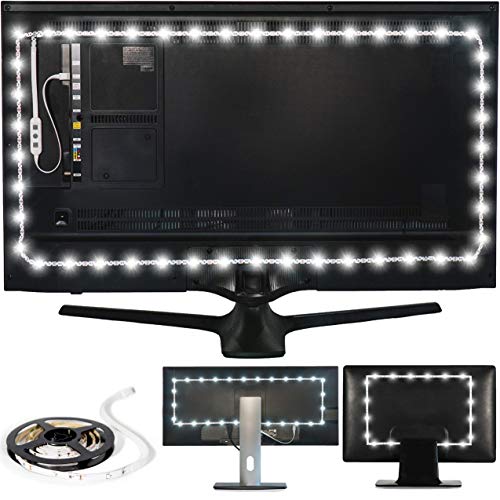
- REDUCE EYE STRAIN: Increasing the ambient light in a room prevents our eyes from straini…
- EASY TO USE: Just clean the back of your monitor, secure your LED strip light, plug the …
- POWERED BY USB: The light strip powers on and off with any 5V, 1A USB port.
What You’ll Need
- Bias lighting kit: Choose a kit like the Luminoodle Bias Lighting, which includes a USB LED light strip specifically designed for monitors.
- Cleaning supplies: Use a microfiber cloth and some isopropyl alcohol to ensure the monitor’s surface is free of dust and oils.
- Measuring tape: Helps to measure the dimensions of your monitor for accurate placement of the light strip.
- USB power source: A USB port on your monitor or a USB wall adapter will be needed to power the light strip.
- Scissors (if applicable): Some light strips can be cut to size; scissors will help you achieve the perfect fit.
Step-by-Step
- Start by cleaning the back of your monitor using a microfiber cloth and isopropyl alcohol. This ensures that the adhesive on the light strip adheres properly.
- Measure the width of your monitor to determine how much of the light strip you will need. The Luminoodle kit is designed for monitors up to 24 inches.
- Unroll the LED light strip and, if necessary, cut it to the appropriate length based on your measurements. Make sure to cut along the designated lines if applicable.
- Peel off the adhesive backing from the light strip. Carefully position the strip along the top edge of the monitor, ensuring it is straight and even.
- Press the light strip firmly against the back of the monitor to secure it in place. Work your way around the edges, if desired, to create a more immersive effect.
- Plug the USB connector into the monitor’s USB port or a USB wall adapter. Ensure that the connection is secure and the light strip is powered.
- Turn on your monitor and check that the bias lighting activates. Adjust the placement if necessary to achieve your preferred brightness and effect.
- Once satisfied with the setup, tidy up any loose cables to maintain a clean workspace.
Pro Tips for Better Results
Consider using a light strip with adjustable brightness settings for more control over your lighting. Position the light strip at a height where it won’t reflect directly into your eyes while working. Experiment with different colors if your kit allows it, as different hues can affect your mood and focus.
Common Mistakes
A common mistake is failing to clean the monitor thoroughly before applying the light strip, which can lead to poor adhesion. Additionally, not measuring the monitor correctly can result in a light strip that is either too short or too long. Avoid placing the light strip in a way that it creates glare on the screen.
Troubleshooting
If your bias lighting does not turn on, first check the USB connection to ensure it is securely plugged in. If the light strip is not bright enough, consider adjusting the brightness settings if available. In case the adhesive fails, you may need to reapply or use additional adhesive solutions.
What to Expect
- REDUCE EYE STRAIN: Increasing the ambient light in a room prevents our e…
- EASY TO USE: Just clean the back of your monitor, secure your LED strip …
- Check fit or sizing first.
- Expect some trade-offs by use case.
Maintenance / Next-Time Checklist
Regularly check the light strip for any dust accumulation or wear and tear. If you notice any dimming or flickering, it might be time to replace the strip. For future setups, keep your cleaning supplies handy for a quick prep before installation.
Recommended Products & Tools
The Luminoodle Bias Lighting kit is specifically designed for easy installation and optimal performance behind monitors. A microfiber cloth is essential for ensuring a clean surface, while a measuring tape helps achieve precise placement. Scissors may be necessary for customizing the light strip, ensuring it fits perfectly on your monitor.
FAQ
Can I use any LED strip for bias lighting?
While you can use any LED strip, it’s best to use one specifically designed for bias lighting to ensure proper brightness and color accuracy. The best routine depends on the carafe design, how often you use it, and how carefully you handle the lid, seals, and inner lining.
Will bias lighting help with eye strain?
Yes, bias lighting increases ambient light, reducing the contrast between your bright screen and dark surroundings, which can help alleviate eye strain. The best routine depends on the carafe design, how often you use it, and how carefully you handle the lid, seals, and inner lining.
How do I know if my monitor has a USB port?
Most modern monitors have USB ports located on the back or side; check your monitor's specifications or user manual if unsure. The best routine depends on the carafe design, how often you use it, and how carefully you handle the lid, seals, and inner lining.
Can I cut the light strip to fit my monitor?
Many LED light strips are designed to be cut at specific points; just ensure you follow the manufacturer's guidelines for cutting. The best routine depends on the carafe design, how often you use it, and how carefully you handle the lid, seals, and inner lining.
How can I change the color of the bias lighting?
Some bias lighting kits come with RGB features that allow you to change colors; check the specifications of your kit for this capability. The best routine depends on the carafe design, how often you use it, and how carefully you handle the lid, seals, and inner lining.
Wrap-Up
Setting up bias lighting behind your monitor is a straightforward process that can greatly enhance your viewing comfort. By following this guide, you can create a more pleasant and visually appealing workspace. Remember to maintain your setup and enjoy the benefits of reduced eye strain and improved aesthetics.
Helpful Tools & Picks
- REDUCE EYE STRAIN: Increasing the ambient light in a room prevents our eyes from straini…
- EASY TO USE: Just clean the back of your monitor, secure your LED strip light, plug the …
- POWERED BY USB: The light strip powers on and off with any 5V, 1A USB port.